How to create a Google My Business page (now Google Business Profile)
Learn how to add, claim, verify, and complete your first Google Business Profile without creating a duplicate listing.
You can add or claim your business on Google at no charge (Add or claim your Business Profile, accessed November 2026). A third-party tool is not necessary for setup. First confirm that the business is eligible and that a listing does not already exist. Google renamed Google My Business to Google Business Profile in November 2021.
How do you create a Google Business Profile correctly?
Start with eligibility. Google Business Profile is for businesses that make face-to-face contact with customers. Online-only businesses and properties offered for rent or sale are not eligible (Get started with Google Business Profile, accessed November 2026).
You also need a Google Account. If the business has a company email address, Google recommends linking it to that account (Get started with Google Business Profile, accessed November 2026).
Choose an account that the business can retain. This matters when you are setting up a new location for a client or employer. The person completing the setup should have authority to represent the business.
Before entering details, prepare the business name, address or service area, primary category, and regular hours.
Does a profile already exist?
Search Google Maps for the business name and city. Check the address and other visible details before deciding that a profile is missing.
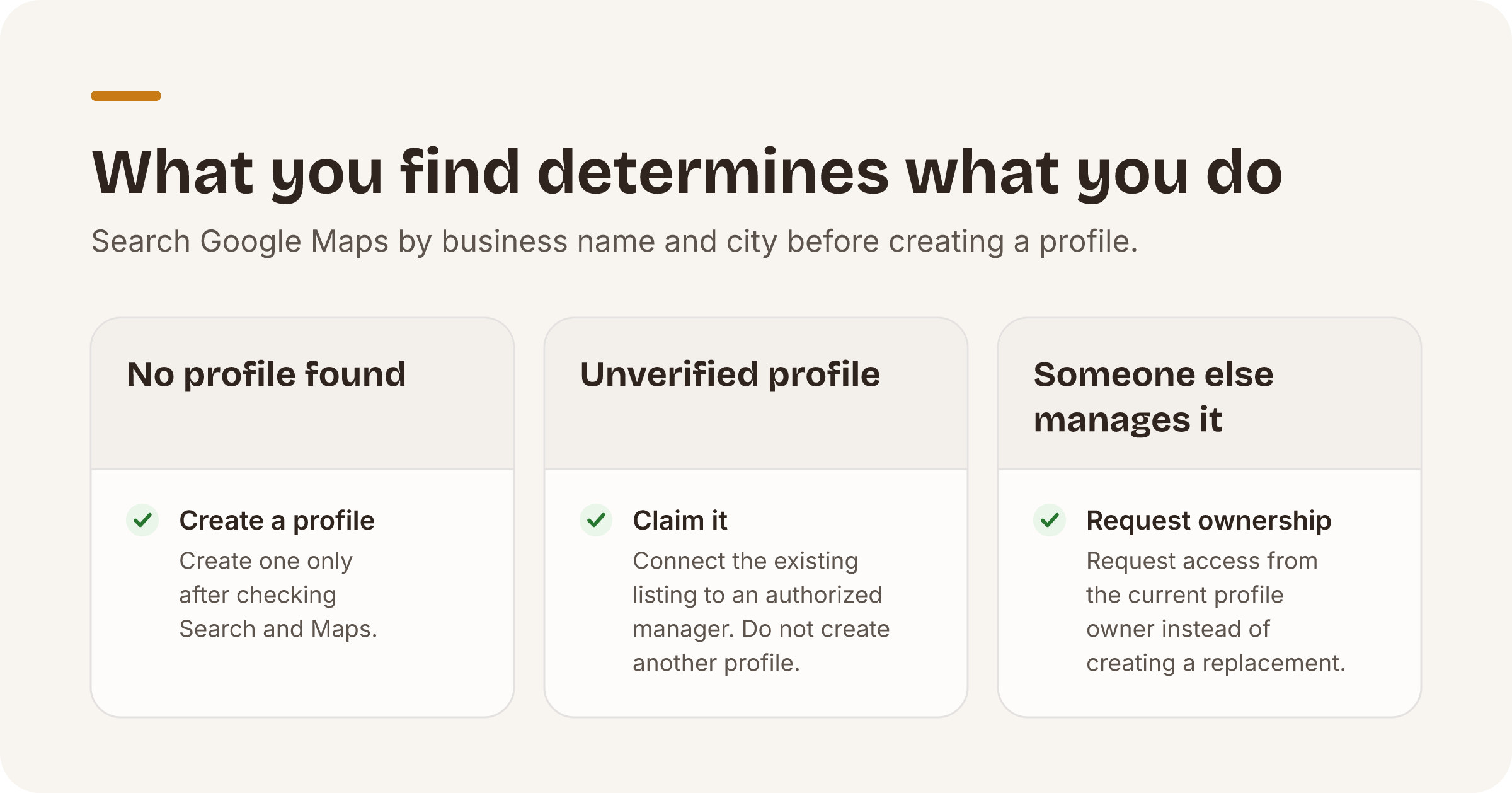
This check helps you avoid creating a second profile for the same business. Google states that there should be only one profile per business (Guidelines for representing your business on Google, accessed November 2026).
An existing profile may be unverified. It may also be managed by someone else. Those situations require a claim or ownership request, not another listing.
How do I add my business to Google?
Create a profile only if you cannot find an existing one on Search or Maps. Google lets you add or claim your business at no charge (Add or claim your Business Profile, accessed November 2026).
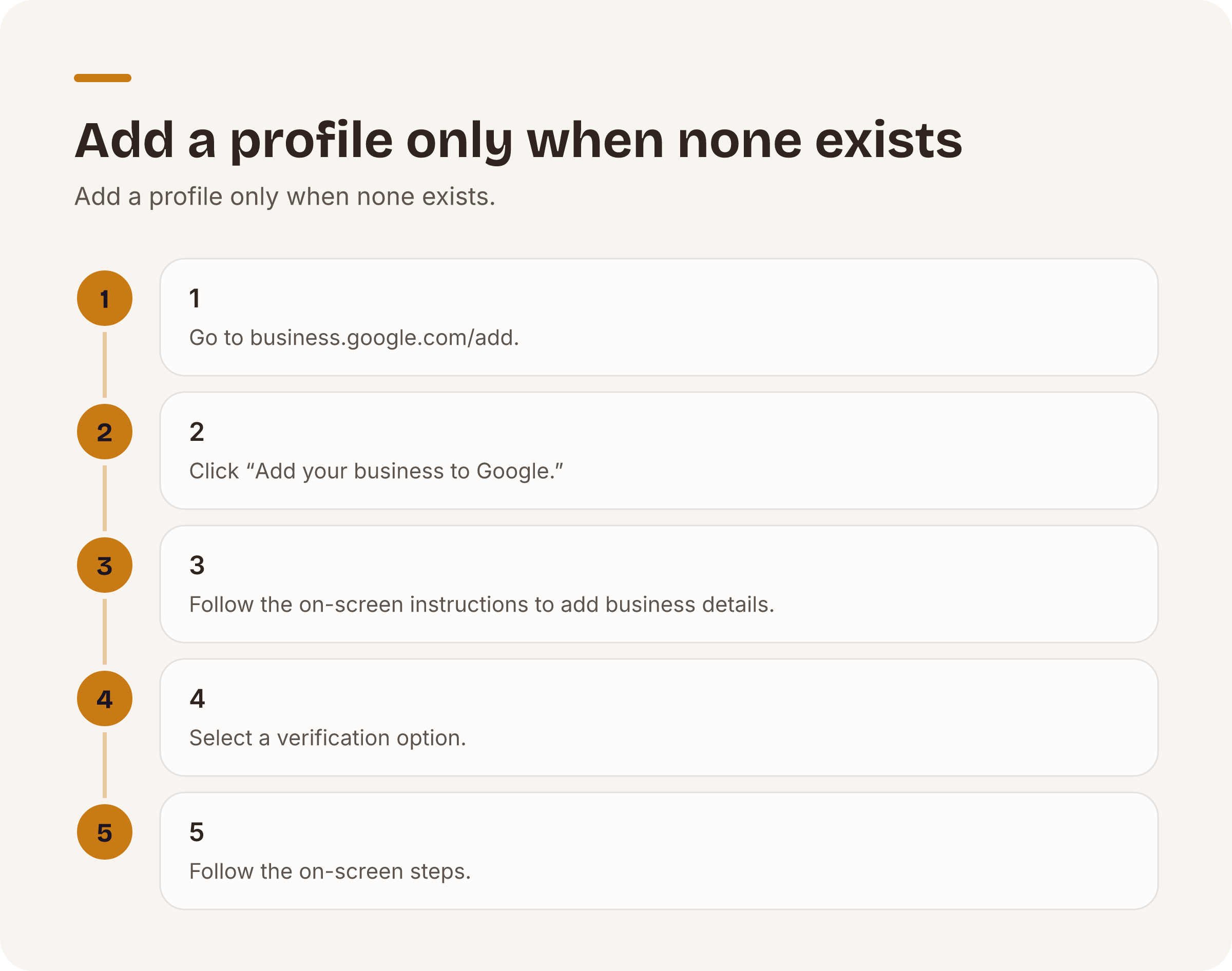
Google gives these steps:
- Go to business.google.com/add.
- Click “Add your business to Google.”
- To add details about your business, follow the on-screen instructions.
- Select a verification option.
- Follow the on-screen steps.
To register your business on Google, add or claim its Business Profile.
How do I claim my business on Google?
If an unverified profile already exists, claim it instead of adding a new one. On a computer, open Google Maps and search for your business’s name and city. Select “Claim this business,” then “Manage now.” Select a verification option and follow the on-screen instructions.
Claiming connects an existing listing to an authorized manager. Check the address and business identity carefully before proceeding, especially when businesses have similar names.
What should you do if someone else verified the profile?
Request access instead of creating a replacement profile. Go to business.google.com/add, enter the name and address of your business, and choose your business from the list. When Google displays “Someone else may manage this Business Profile,” select “Request Access.”
The current profile owner is then notified by email and has three days to respond (Request ownership of a Business Profile, accessed November 2026).
Use an email address connected to the business where possible. If the profile is already verified and you are authorized to manage the business, request ownership from the current profile owner.
What happens during verification?
Verification is required before you can edit information such as the business name or hours and interact with customers through the profile. Google determines the available verification methods automatically. You cannot change them. The options depend on the business type, public information, region, or business hours. They may include phone or text, email, live video call, or video recording (Verify your business on Google, accessed November 2026).
Follow the method shown in the account. Another business may receive a different option.
Google also says that rankings for a new business can take up to a month to appear in search results (Find your business on Google, accessed November 2026).
PlaceOptimizer does not create or verify profiles for you. You add or claim the listing and complete verification through Google’s tools.
What should you complete after verification?
Complete the core information before treating the setup as finished. Add accurate hours and contact details. Add photos and complete the relevant fields available in the profile.
Choose one primary category that specifically describes the business. Google gives “Nail salon” as a more specific choice than “Salon.” It also advises against selecting a category for every product or service (Manage your business category, accessed November 2026).
A service-area business should remove its address if it does not serve customers there. Google defines this as a business that visits or delivers directly to customers, such as a plumber or cleaning service. You can set up to 20 service areas based on the cities, postal codes, or other areas served (Manage your service areas for service-area & hybrid businesses, accessed November 2026).
Complete and accurate information makes a business more likely to appear in relevant local results. However, there is no way to request or pay Google for a better local ranking (Tips to improve your local ranking on Google, accessed November 2026). Our audit checks profile completeness and consistency. It does not control your position in the map pack.
Automated capability: once the profile is live, our Brand Health audit checks the listing across seven categories: basic info, hours, ratings and reviews, photos, categories, cross-location consistency, and listing health with duplicate-pin candidates. Duplicate-pin candidates are surfaced for a person to confirm and merge. PlaceOptimizer never merges them automatically.
Which setup mistakes should you avoid?
Do not add a second profile because you cannot access the first one. Claim the unverified listing or request ownership of a verified one.
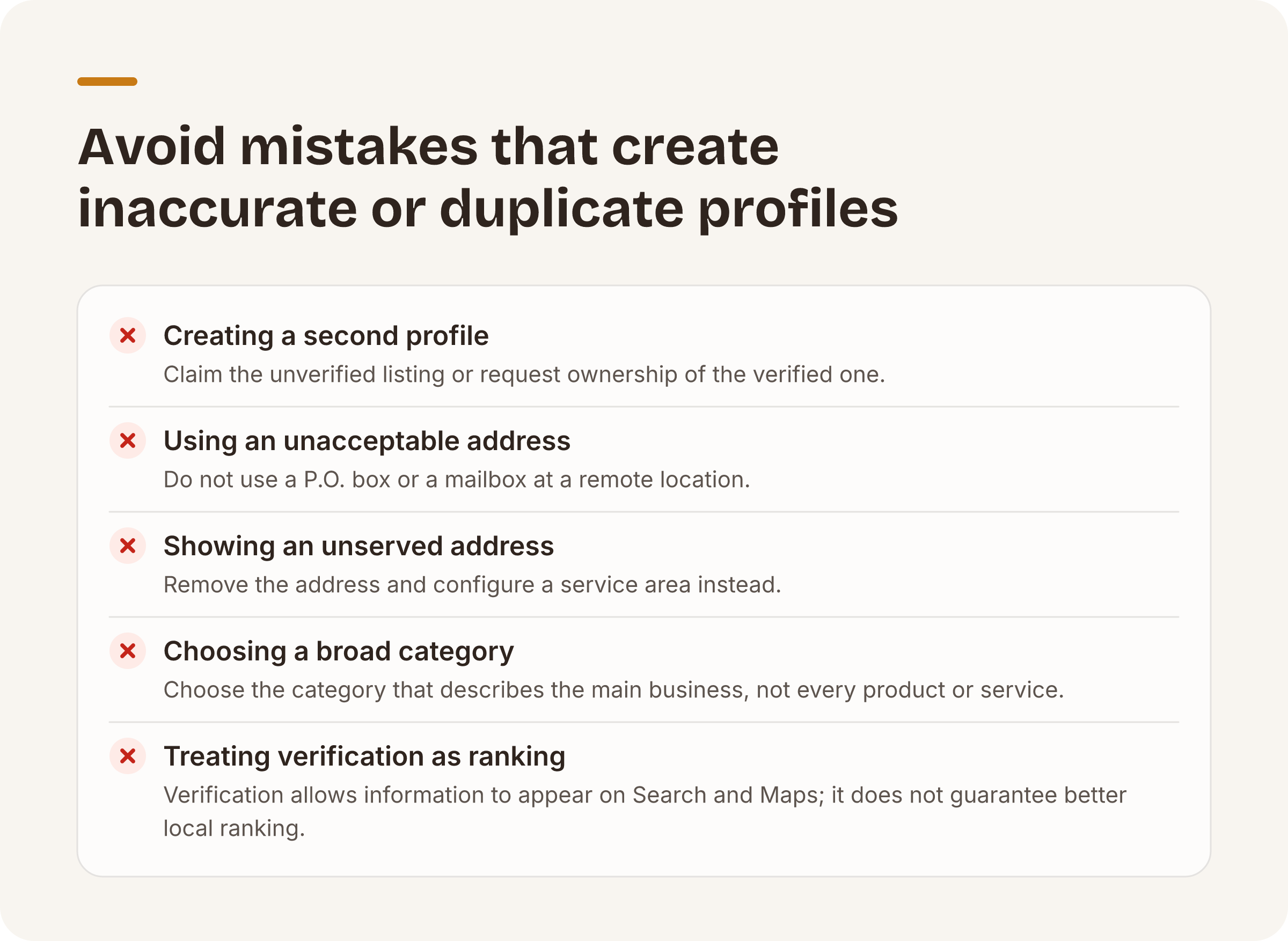
Google states that P.O. boxes or mailboxes located at remote locations aren’t acceptable (Guidelines for representing your business on Google, accessed November 2026).
Do not display an address where customers are not served. Configure a service area instead. This applies to businesses such as cleaning services and plumbers.
Do not choose a broad category merely because it appears to cover more services. The primary category should describe the main business. Do not select a category for every product or service.
Do not treat verification as a ranking guarantee. Only verified businesses can show their information on Search and Maps, and there is no way to request or pay for a better local ranking.
After the verified profile is complete, run a free Brand Health audit. No card is required. The service is capped at three audits per email per day.
Put this playbook on autopilot.
The free audit runs every check in this post across all your locations — no card required.